

Opencode
Use opencode with Doubleword's API to unlock GLM-5.2, currently the most performant open-source coding model. This integration gives your terminal agent a full 1M-token context window, making it ideal for repository-wide refactoring and long-running background tasks.
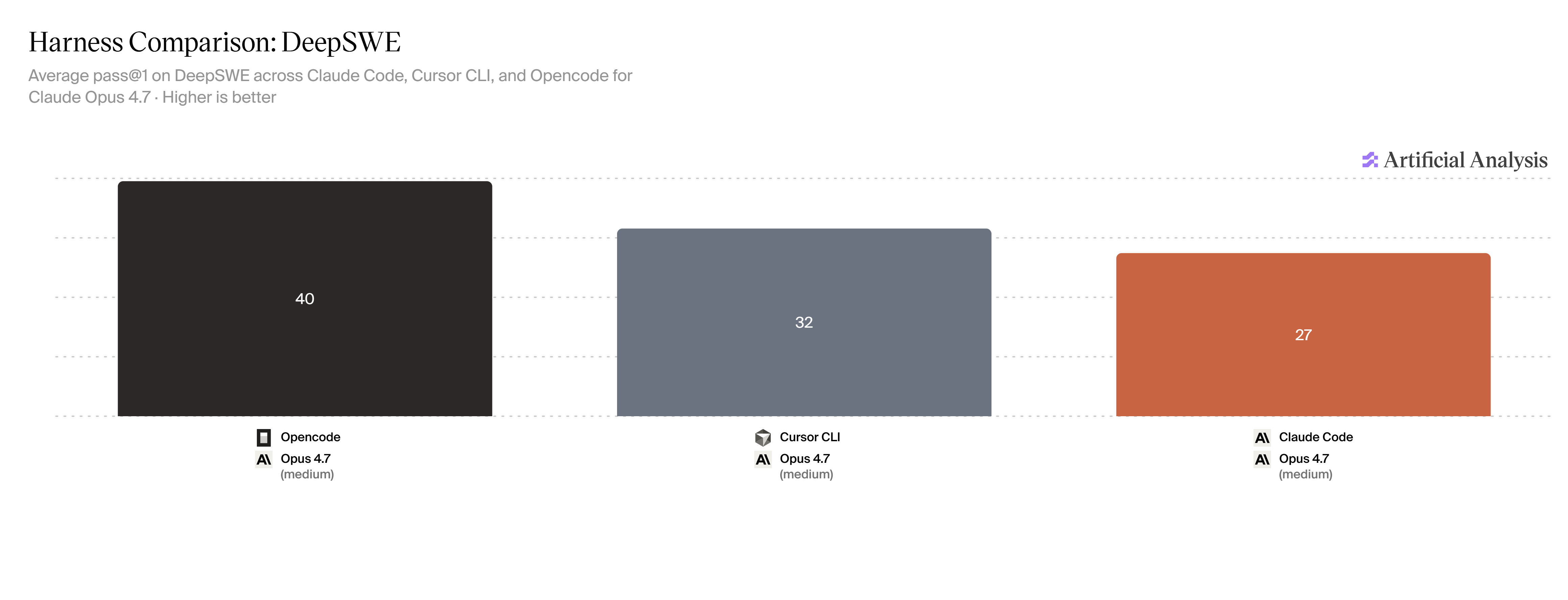
Opencode holds its own against Cursor and Claude Code. Source: Artificial Analysis, 19 Jun '26.
1. Install opencode
If you don't already have opencode installed, pick the method that matches your environment:
# macOS / Linux (install script)
curl -fsSL https://opencode.ai/install | bash

# Homebrew
brew install sst/tap/opencode

# npm (any OS)
npm i -g opencode-ai
On Windows, use the npm install or run it under WSL.
Once installed, start your terminal in your project directory by running this command:
opencode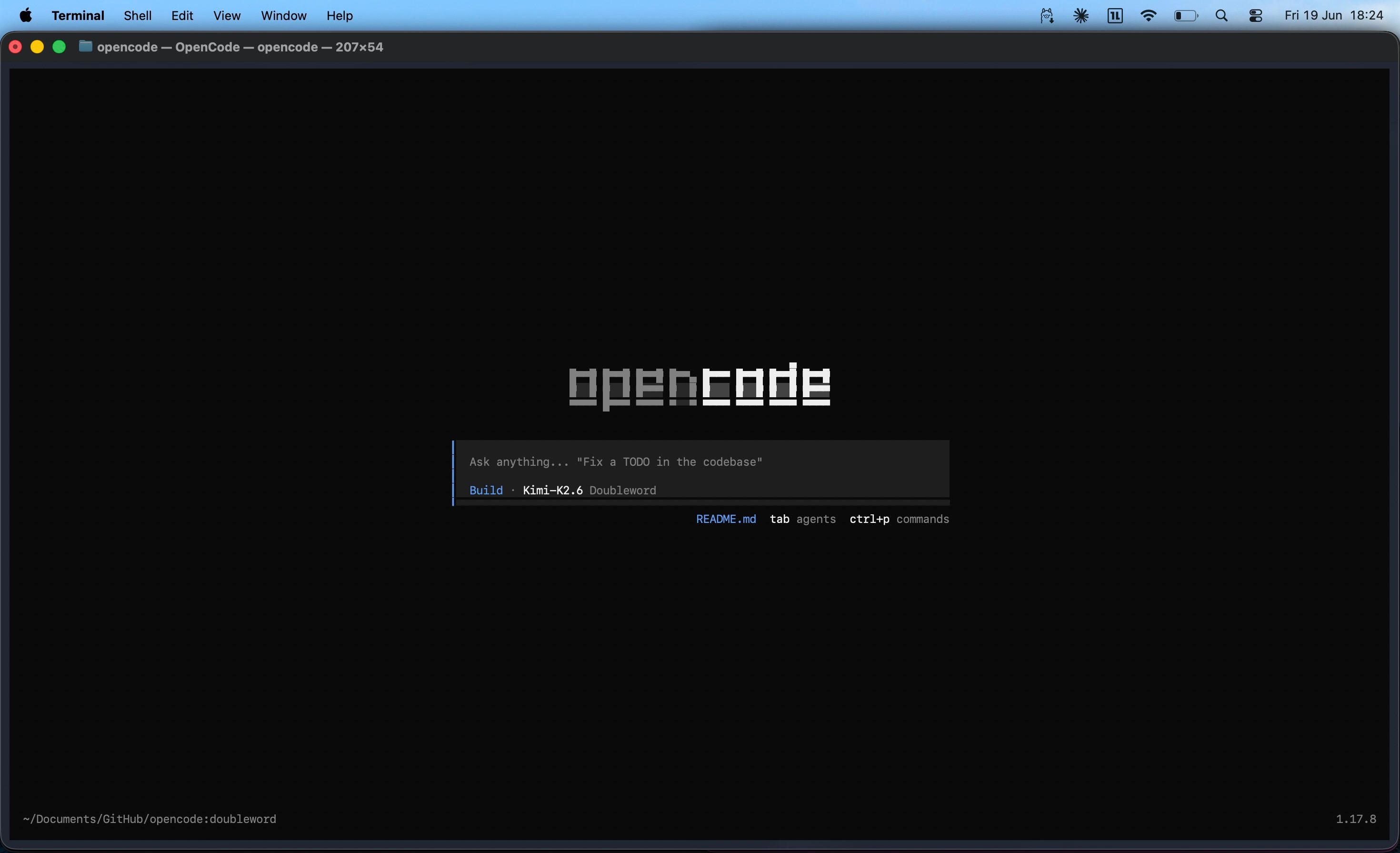
If you prefer a visual interface, run opencode web and open the provided localhost link in your browser:
opencode webThen visit this link http://127.0.0.1
to open it.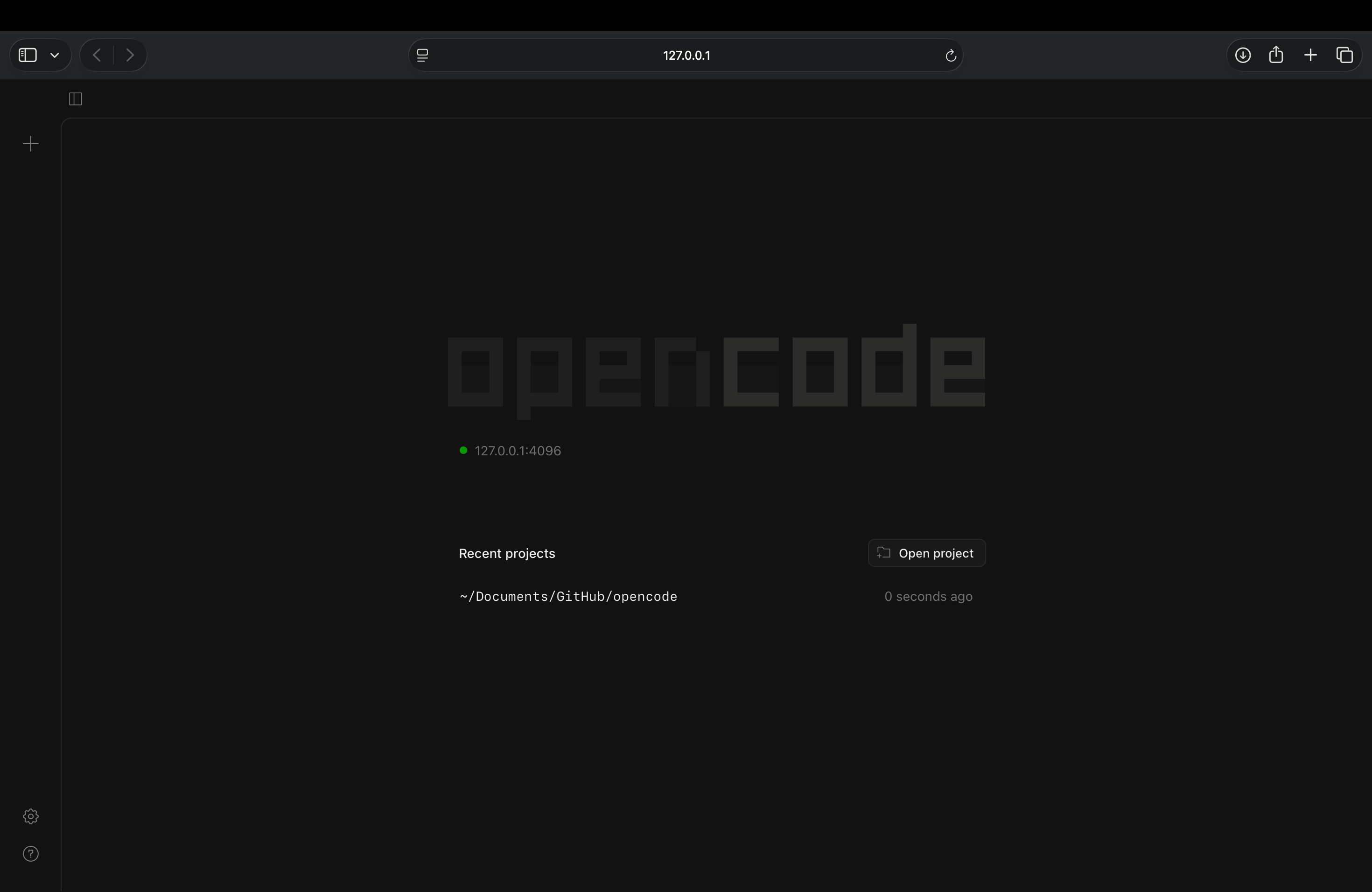
2. Generate a Doubleword API key
- Sign in to the Doubleword Console.
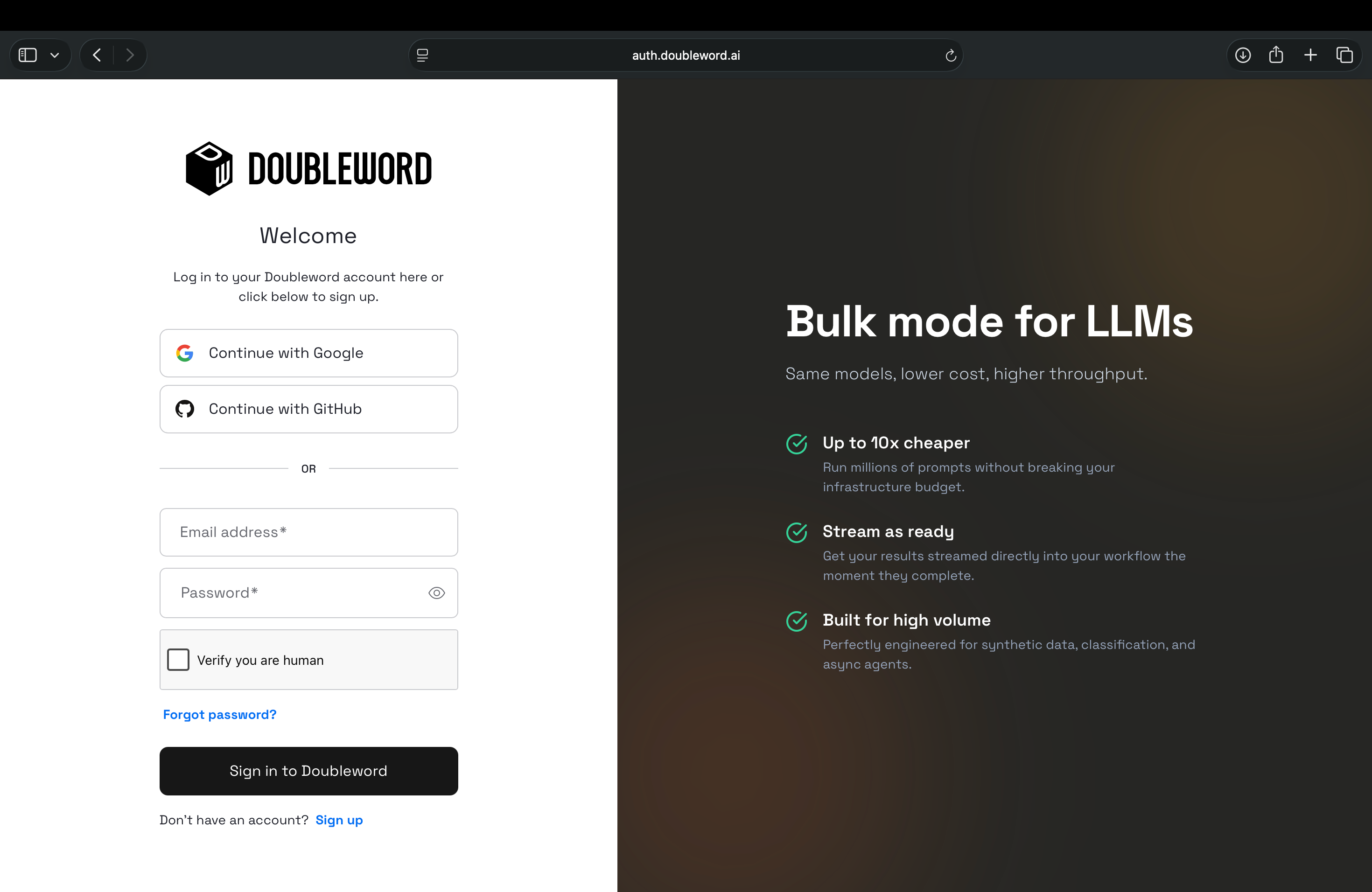
- In the sidebar, go to API Keys and select Create API Key.
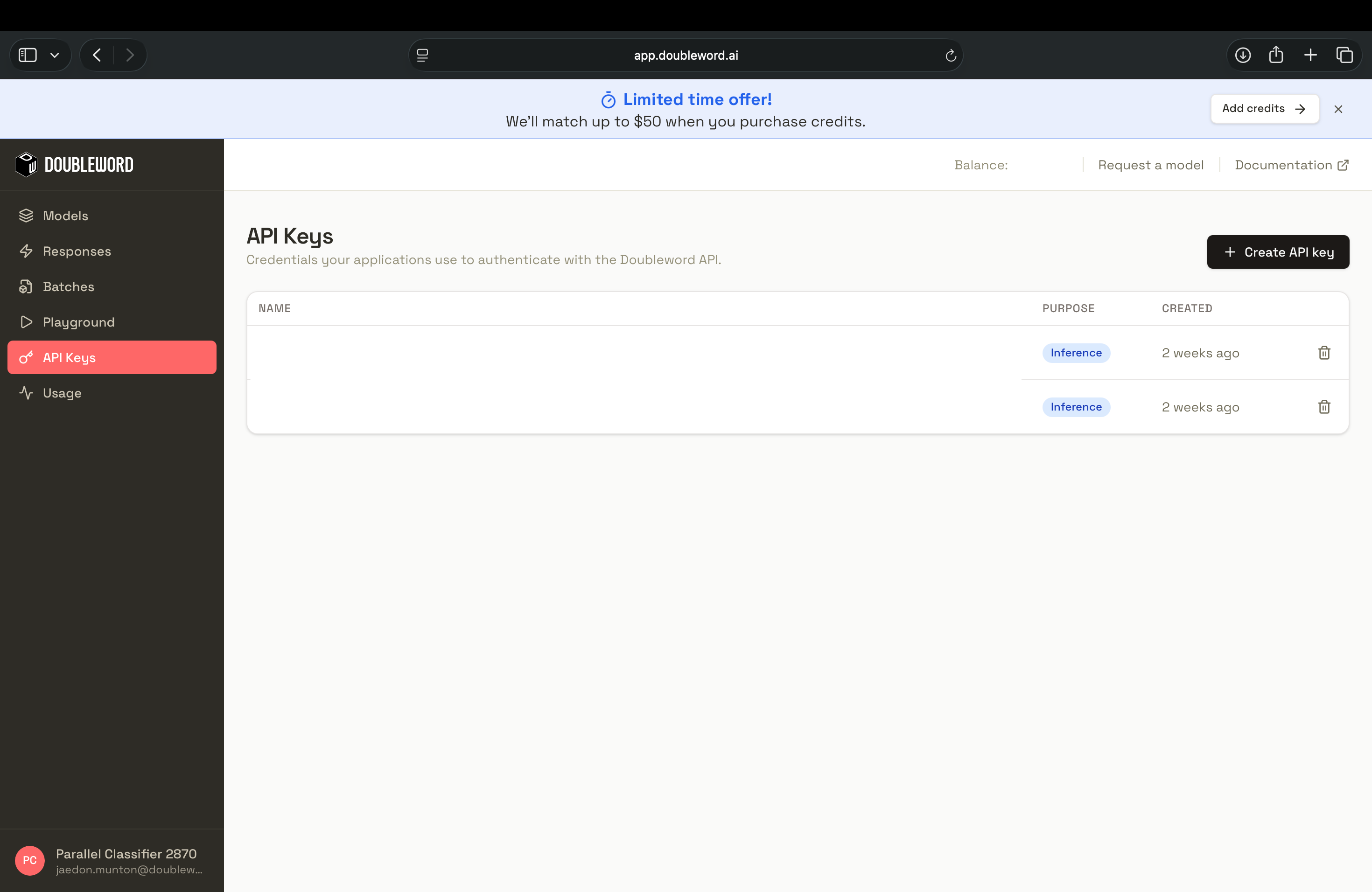
- Copy the key immediately — it's only shown once. Keep it secure and never share it publicly.
3. Connect the provider
Inside your running opencode terminal, type the following into the prompt to add a new custom provider:
/connectScroll to the bottom of the provider list and select Other. When prompted:
- Provider ID: enter
doubleword - API Key: paste the key you generated in Step 2
4. Configure your context limits
To route traffic to Doubleword and explicitly define your expanded context limits, add the following to your opencode.json. Place it in your project root for project-specific settings, or globally at ~/.config/opencode/opencode.json.
You can create the folder and configuration file by running these commands in your terminal:
mkdir -p ~/.config/opencode

cat > ~/.config/opencode/opencode.json <<'EOF'
{
  "$schema": "https://opencode.ai/config.json",
  "provider": {
    "doubleword": {
      "name": "Doubleword",
      "npm": "@ai-sdk/openai-compatible",
      "env": ["DOUBLEWORD_API_KEY"],
      "options": {
        "baseURL": "https://api.doubleword.ai/v1"
      },
      "models": {
        "moonshotai/Kimi-K2.6": {
          "name": "Kimi K2.6 (Doubleword)",
          "tool_call": true,
          "limit": { "context": 128000, "output": 8192 }
        },
        "zai-org/GLM-5.2-FP8": {
          "name": "GLM-5.2 (Doubleword)",
          "tool_call": true,
          "limit": { "context": 128000, "output": 8192 }
        }
      }
    }
  }
}
EOF
Note: opencode securely stores the API key you provided in Step 3 and injects it into requests automatically. You do not need to expose your key in this JSON file. We are currently working upstream to add Doubleword as a native primary provider.
5. Select the model and verify
With the configuration saved, jump back into opencode and type the following into the prompt to list available models:
/modelsSelect GLM-5.2 (Doubleword) from the list. To verify the integration is working and test your new context window, try asking it to summarize a large directory in your project:
Read through my
/srcdirectory and summarize the core architecture.
For a full list of supported models and volume pricing, visit the Doubleword docs.